GETTING STARTED
Signing Up and Signing In
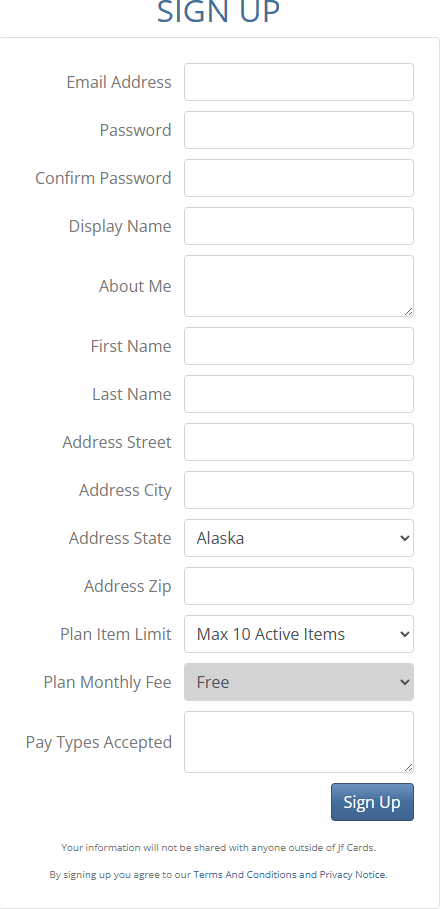
Click the "Sign Up" button, located on the right side of the top of the page.
Enter your Email Address and a Password.
Optionally enter a Display Name value. If you do not enter a Display Name value, your Email Address will be used as your Display Name in the site.
Optionally enter a note about yourself in the About Me area.
Enter your Name and Address. This will be used for shipping. Your personal information will never be shared with anyone outside of JF Cards.
Select a Plan Item Limit. This limit determines how many active items you may have listed at any time. For example, if you have an active item limit of 100, you may enter 100 items initially and then enter another item each time you make a trade or sale.
Optionally enter the payment types that you will accept.
If you would like to be set up for taking credit card payments, please contact support@jfcards.com.
Click the "Sign Up" button to create your JF Cards account.
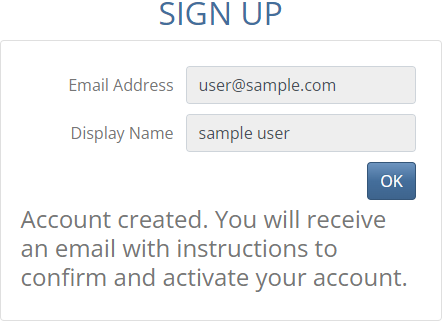
Once your account is successfully created, you will receive an email for instructions to confirm your email address and activate your JF Cards account.
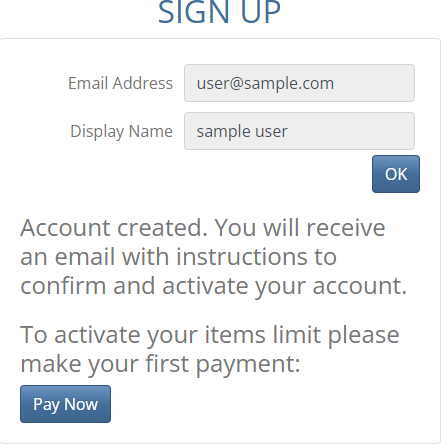
If you have selected a Plan Item Limit that has a Plan Monthly Fee, you will be instructed to make your first payment.
Your Plan Item Limit will be set after you make your first monthly payment. Please allow up to 5 minutes for processing after making the payment.
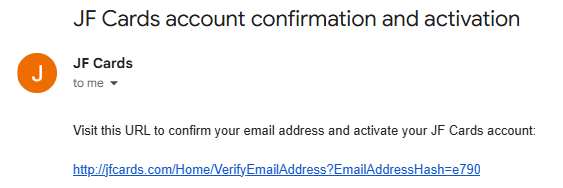
Check your email and you will find instructions along with a link for you to click to activate your JF Cards account.
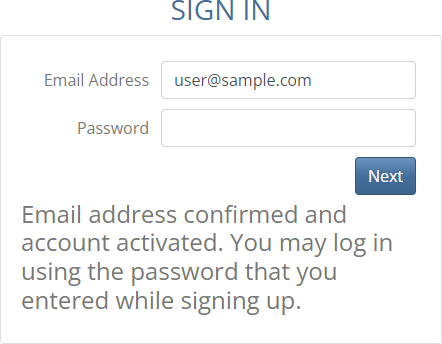
Click the link in your email and you will be redirected to the JF Cards Sign In page
Your JF Cards account is now active and you may sign in using the email address and password that you entered while signing up
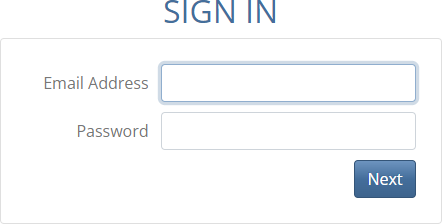
After your JF Cards account is active, you may use the "Sign In" button located on the right side of the top of the page, at any time to sign in.
Enter your Email Address and your Password, and click the "Next" button to sign in.
When you are signed in, you may use the "Sign Out" button located on the right side of the top of the page, at any time to sign out.
Managing Your Account
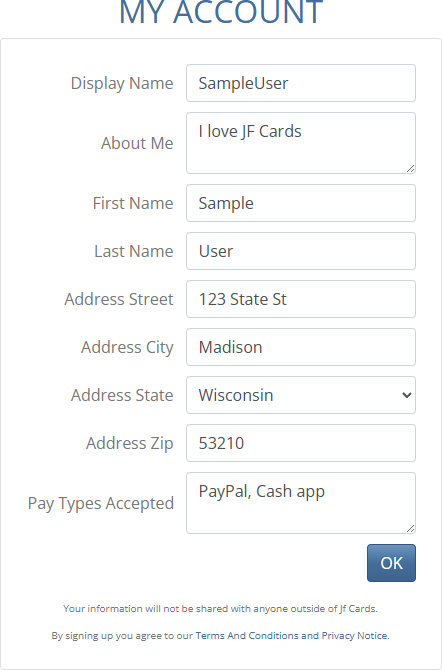
In the main menu is a section labeled with your Display Name or Email Address. Click on the "My Account" link within this main menu section to go to your account settings.
In the first section you may change your Display Name, About Me note, Name, and Address.
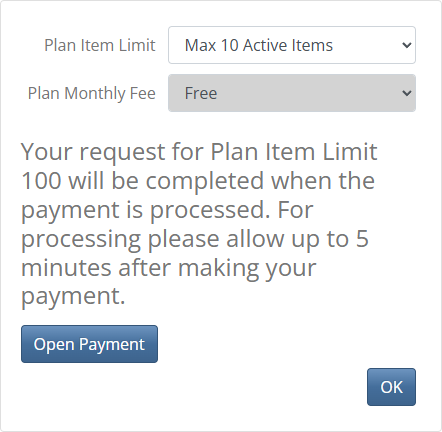
In the next section you may view or change your Plan Item Limit.
If you have already selected a Plan Item Limit that has a fee, before completing your payment you will see a message regarding the status.
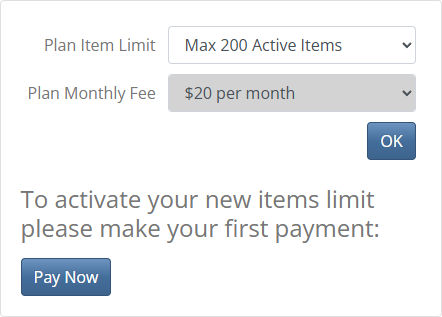
If you have selected a Plan Item Limit that has a Plan Monthly Fee, you will be instructed to make your first payment.
Your Plan Item Limit will be set after you make your first monthly payment. Please allow up to 5 minutes for processing after making the payment.
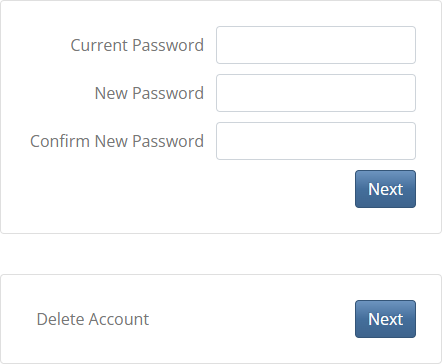
In the next section you may change your Password.
In the final section you may delete your JF Cards account.
Listing your Items
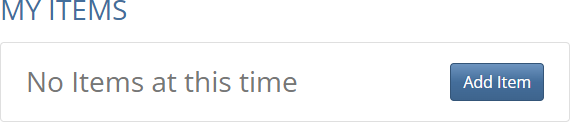
In the main menu is a section labeled with your Display Name or Email Address.
Click on the "My Items" link within this main menu section to go to your listing of items page.
The "My Items" page displays your currently listed items and allows you to Add, Edit, and Delete items.
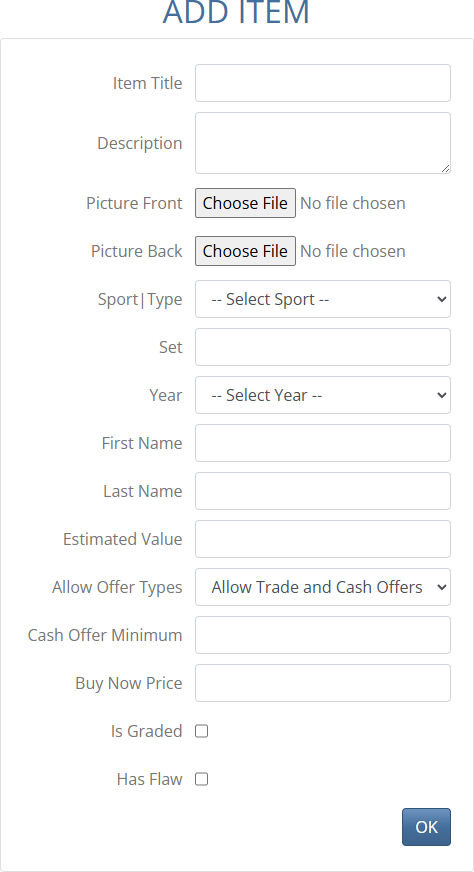
To list a new item, click the "Add Item" button.
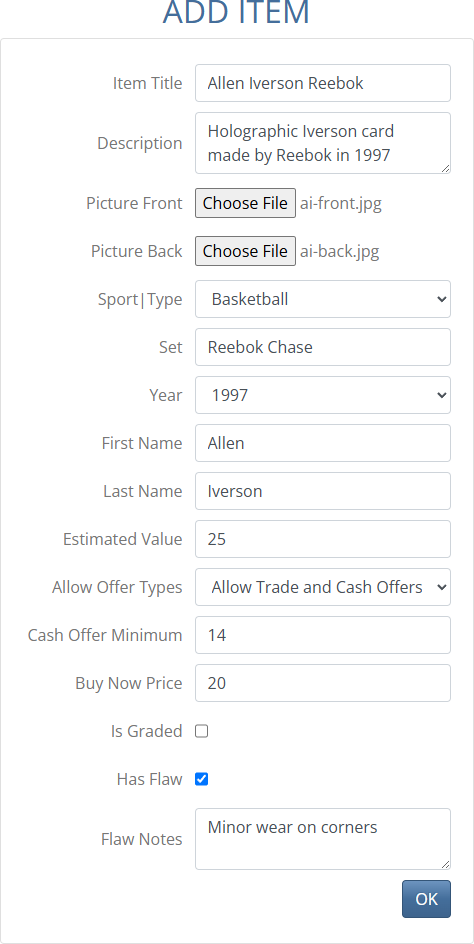
Enter an Item Title.
Optionally enter an Item Description, Front and Back picture files, Sport, Set, Year, player First and Last Name, Estimated Value, Allow Offer Types, Cash Offer Minimum, Buy Now Price, Grading details, and Flaw details.
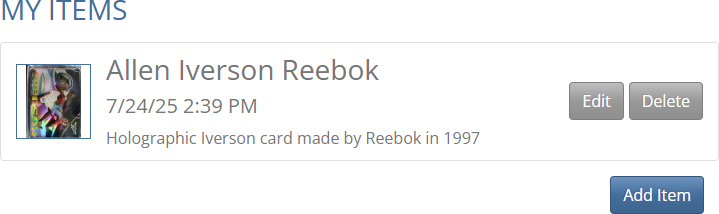
Click the "OK" button and the item is created and added to your list.
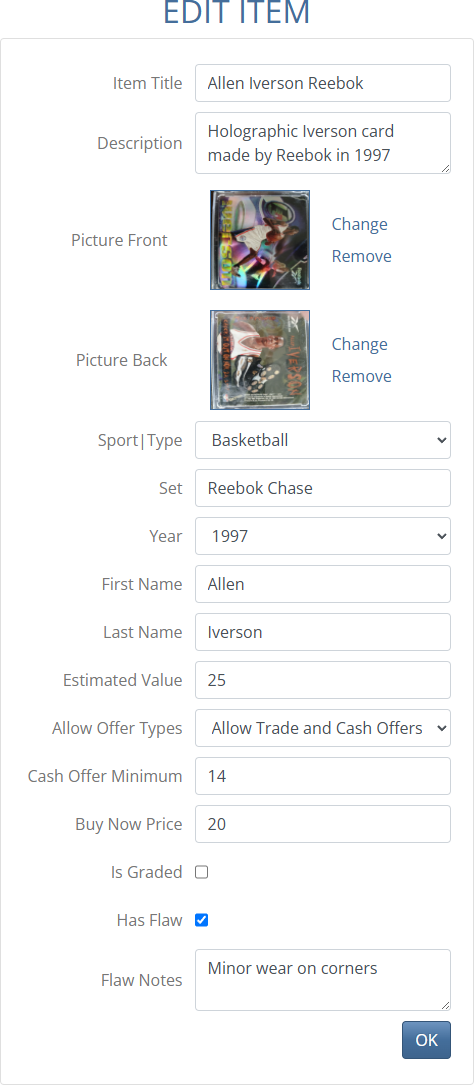
Each item in your list has an "Edit" and a "Delete" button.
Click the "Edit" button on an item to be able to change its details.
Click the "Delete" button to remove the item from your list.
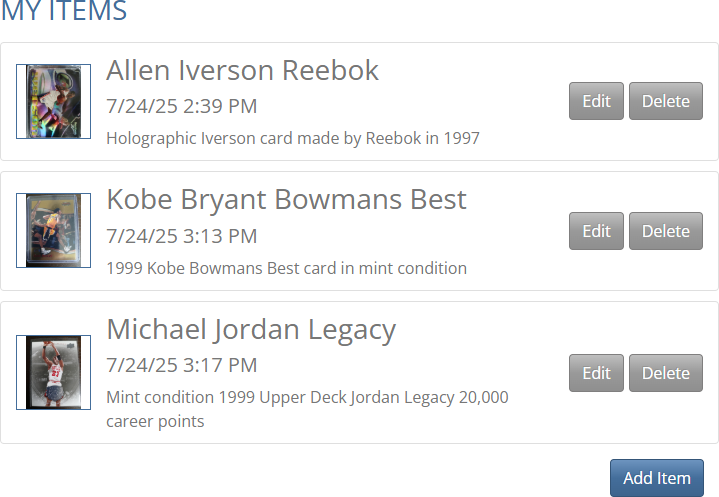
To continue listing additional new items, use the "Add Item" button to add them onto your list.
Messages
In the main menu is a section labeled with your Display Name or Email Address.
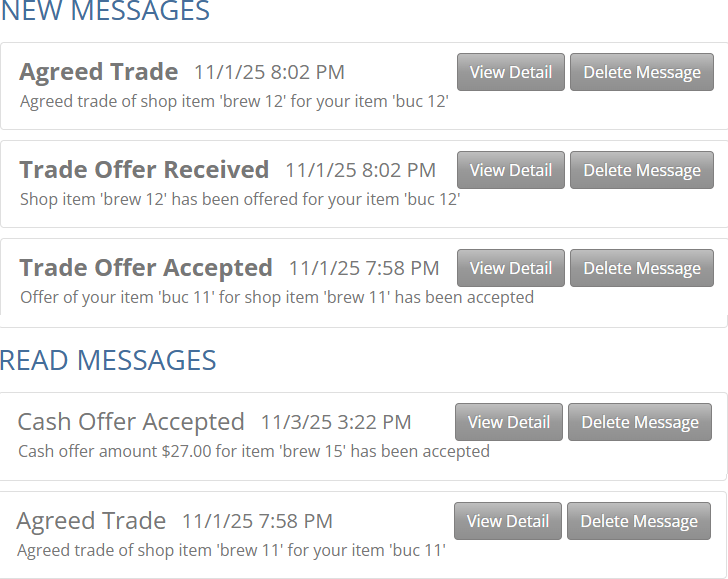
Click on the "Messages" link within this main menu section to view notification messages that are generated by the system.
You will receive notification messages regarding offers, trades, and their status.
Each message has a "View Detail" button that will direct you to the related page.
Each message has a "Delete Message" button that may be used to remove it from your list.
The top section named "New Messages" displays a list of the messages where you have not yet clicked the "View Detail" button.
The next section named "Read Messages" displays a list of the messages where you have clicked the "View Detail" button.
Rooms
In the main menu is a section labeled with your Display Name or Email Address.
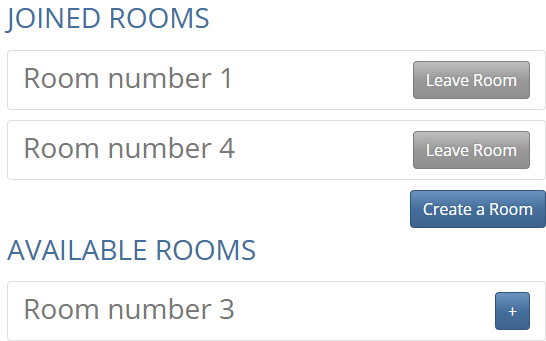
Click on the "Rooms" link within this main menu section to create, join, and leave Rooms.
A Room is a grouping of users. When shopping, you are able to filter the items to show only those belonging to members of the Room.
The top section named "Joined Rooms" displays a list of the Rooms you have joined.
Use the "Leave Room" button displayed on a row to cancel your membership in the Room.
The "Create a Room" button in the middle of the page is used to create new Rooms.
When you create a new Room you are automatically joined as a member of the Room.
The bottom section named "Available Rooms" displays a list of the Rooms that you have not joined.
Use the "+" button on an available Room row to join that Room.
Billing
In the main menu is a section labeled with your Display Name or Email Address.
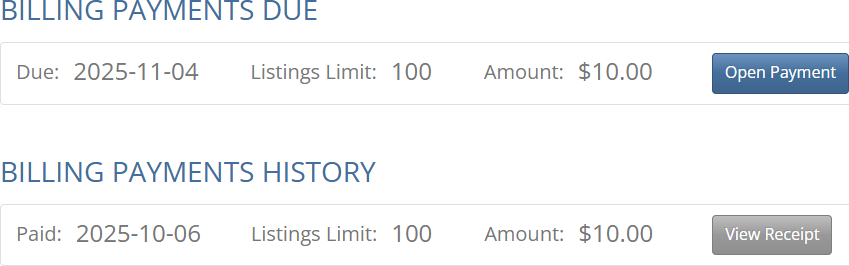
Click on the "Billing" link within this main menu section to view currently due and past made Plan Monthly Fee payments.
The payments in this section are only from Plan Monthly Fees. You will only see payments here if you have chosen a Plan Item Limit that has a Plan Monthly Fee.
Payments made for shop items are not included in this section.
The top section named "Billing Payments Due" displays any Plan Monthly Fee that is currently due and not yet paid. Use the "Open Payment" button to open the invoice and make the payment.
The bottom section named "Billing Payments History" displays a list of the past Plan Monthly Fees that you have already paid. Use the "View Receipt" button to view the details of the payment.