SHOPPING
Shopping and Searching for Items
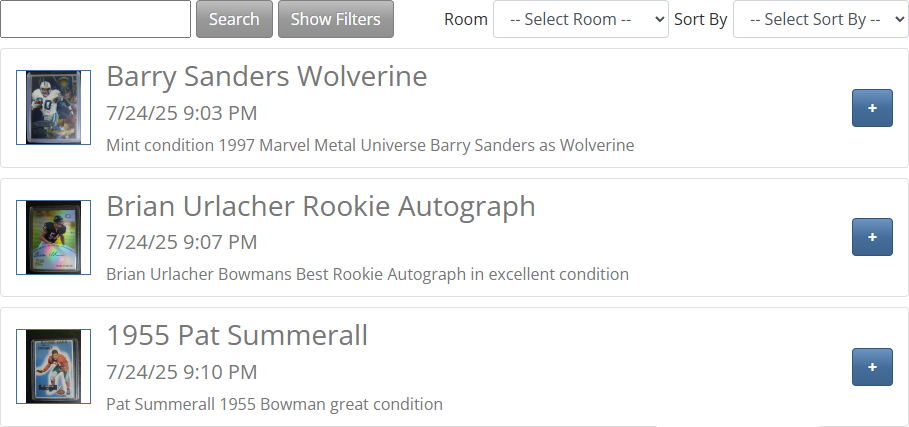
In the main menu is a section labeled "Shop".
Click on the "Shop for Items" link within this main menu section to view all currently listed items.
Each item will have displayed its Picture preview, Title, date it was listed, and first line of its Description.
At the top of the page is a select list named "Rooms".
The "Rooms" select list contains the Rooms that you joined in the previous section.
Select a Room from the list to see only the items that belong to users who are members of that Room.
The items will be ordered by their created date, with the newest items at the top.
At the top of the page is a select list named "Sort By".
Select an option from this list to change how the items are ordered.

At the bottom of the shop page are links for paging.
The links for paging will only display if there are more than 50 shop items in the selected or filtered list.
Each page displays 50 items at a time.
The middle of the paging section displays the current page number being viewed.
Use the left and right arrows for going to the previous page and to the next page.
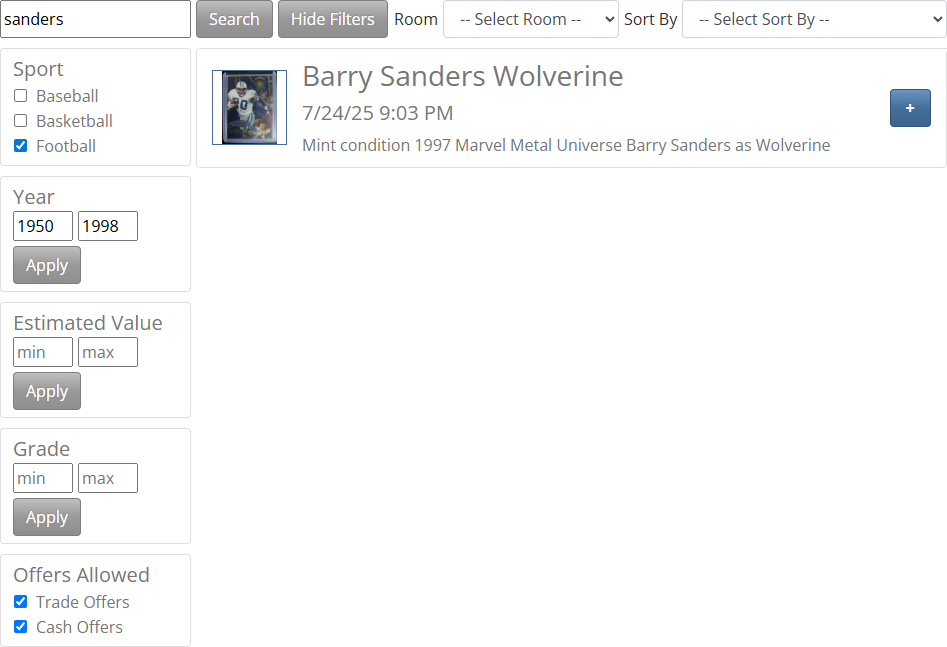
At the top of the shop page is a text input with a button named "Search" and a button named "Show Filters".
Type into the text input and click the "Search" button to show only items that match what you have entered.
Click the "Show Filters" button to open a set of filtering options on the left side of the page.
The "Sport" filter has checkboxes to show only the sports that are checked.
Other filters let you select minimum and maximum values.
The "Offers Allowed" filter has checkboxes to show only items that allow the selected types of offers.
To clear the search and reset the filters, click on the "Shop for Items" link in the main menu.
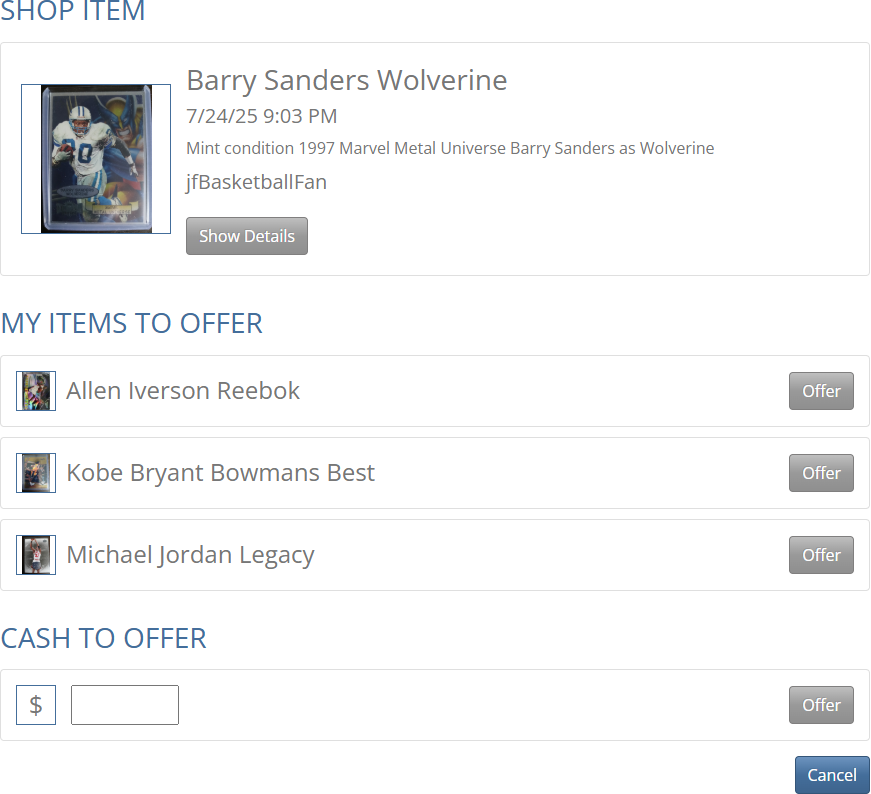
To view details of a shop item and be able to make an offer, click the "+" button on the right side of the item on the shop page.
The shop item detail page will display its Picture, Title, creation date, complete Description, and owner user.
Click on the Picture to open a slideshow with full size views of the front and back pictures.
Click on the "Show Details" button to view all other details of the item.
Underneath the shop item, is a list of your current items that may be offered as a trade for the shop item, if the shop item allows trade offers.
Underneath the list of your current items is a cash amount to offer, if the shop item allows cash offers.
If the item has a Buy Now Price it will be displayed in the "Show Details" section above. If you click on the Buy Now Price value it will put that value in the cash amount to offer. When you offer the Buy Now Price amount it will be accepted automatically.
In the "Show Details" section of the item, if there is a Buy Now Price, click on the price to have it entered in the cash offer section. Click on the "Offer" button and your offer will be accepted.
To offer an item or an entered cash amount, click the "Offer" button on the right side of it.
The number of shop items that you can offer your item for is limited to your account Plan Item Limit.
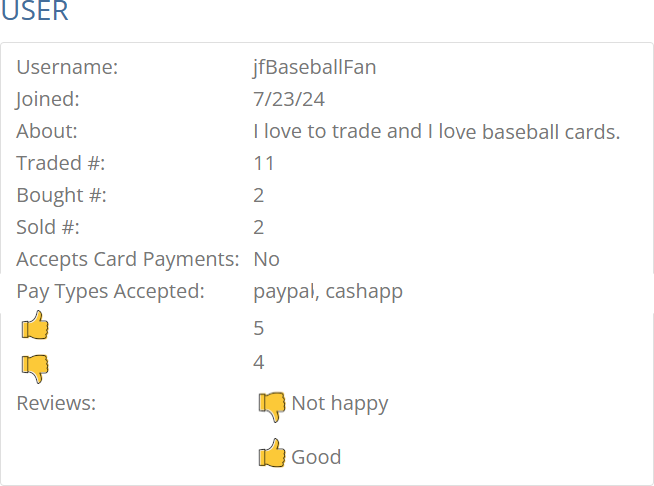
On the shop item detail page, click on the owner user name to open their user profile page.
The top section of the user profile page displays their details, including their transaction history, payment types accepted and ratings.
Users may accept card payments only if they have been set up to do so. If you are interested in being able to accept card payments, please contact JF Cards by sending an email to support@jfcards.com.
Click on the "Show Reviews" button to view the reviews that have been entered for their ratings.
The bottom section of the user profile page displays their currently listed items.
To view details of an item and be able to make an offer, click the "+" button on the right side of the item.
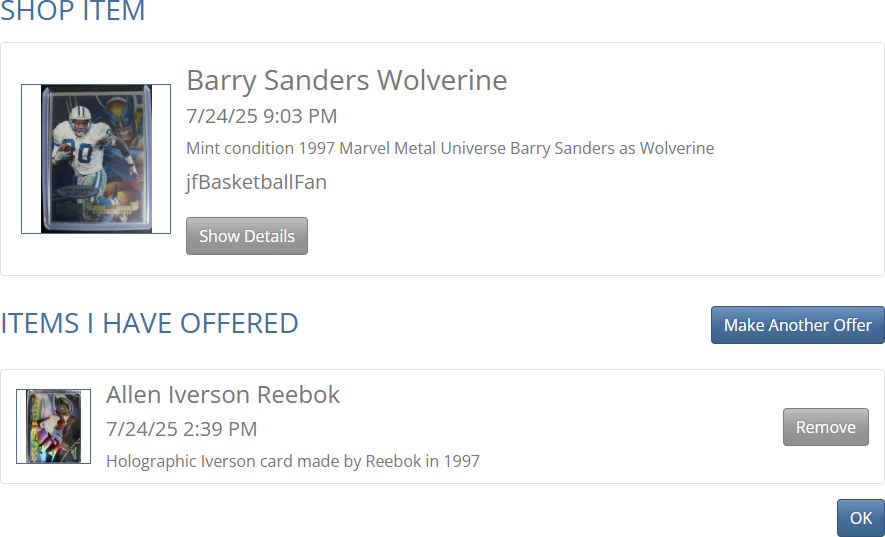
When you make an offer, you are taken to a detail page that shows the shop item and the items or cash amount that you have offered.
Click on the Picture to open a slideshow with full size views of the front and back pictures.
Click on the owner user name to open their user profile page.
Click on the "Show Details" button to view all other details of the item.
To make another offer for the shop item, click the "Make Another Offer" button on the right side below the shop item, and you will return to the offering page.
Each time you make another offer, you will be taken back to the detail page showing the shop item and a list of the offers you have made.
Each item is a separate offer. Multiple items offered are not combined into a single offer.
You may offer one of your items for more than one shop item. The number of offers is limited to the same amount as your Plan Item Limit.
To cancel an offer that you have made, click the "Remove" button on the right side of the offered item or cash amount.
Once you are done making offers for the shop item, click the "OK" button to be taken to the "Offers I have Made" page.
You may also click on the "Offers I have Made" link in the main menu "Shop" section to get to this page.
Offers I have Made

The "Offers I have Made" page lists the shop items that you have made offers on.
To view the details of your offers for a shop item on the "Offers I have Made" page, click the "Detail" button on the right side of the item.
You will be taken back to the detail page that shows the shop item along with a list of the offers you have made for it.
Items I have Offered

Click on the "Items I have Offered" link in the main menu "Shop" section to see a list of your items that are currently offered for any shop item.
To view the details for an item of yours listed here, click the "Detail" button on the right side of the item.
The detail view will display a list of the shop items that you have offered your item for.
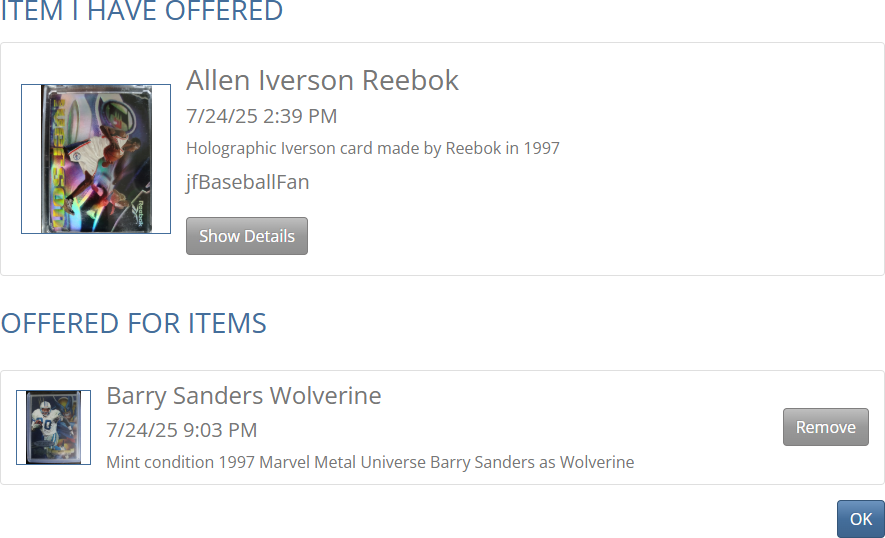
The "Items I have Offered" detail page shows your item and a list of the shop items that you have offered your item for.
To cancel any offer you have made using this item and remove it from the list, click the "Remove" button on the right side of the shop item.