TRADING
Offers for My Items
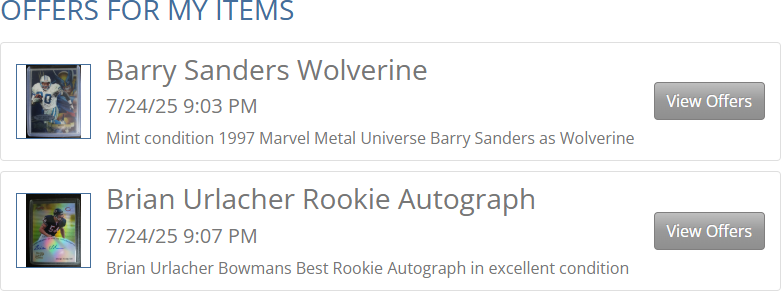
In the main menu is a section labeled "Trades".
Click on the "Offers for My Items" link in this section to view a list of your items that have any current offers made for them by other users.
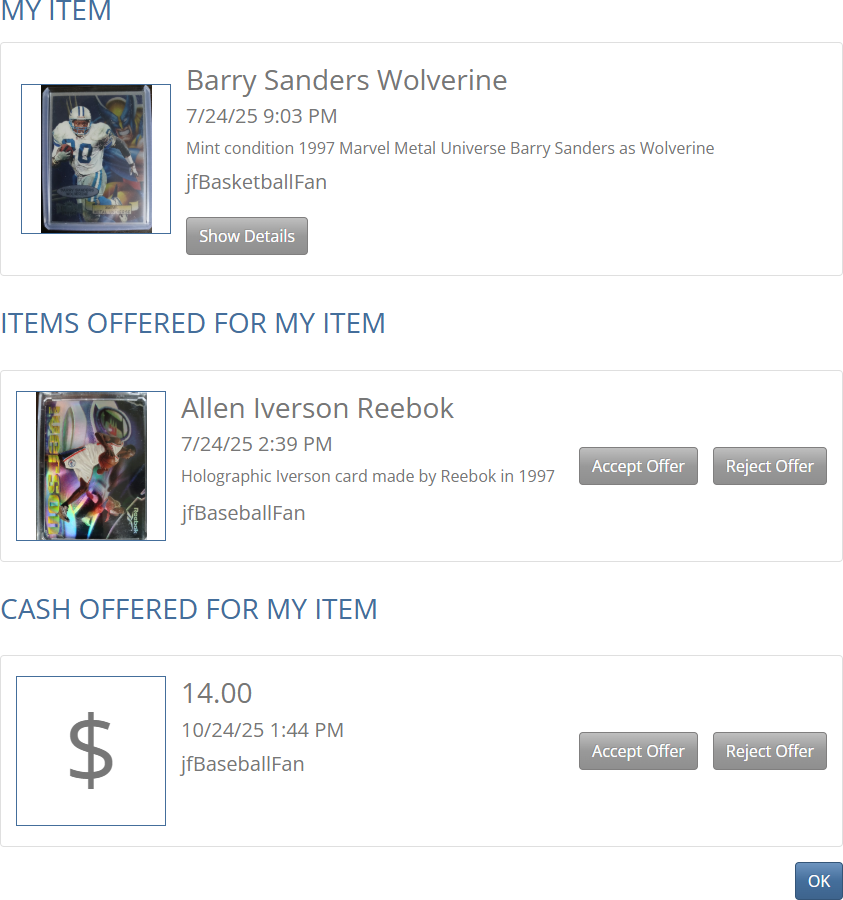
To see the details for an item listed on the "Offers for My Items" page, click the "View Offers" button on the right side of the item.
The detail page shows your item along with a list of the items and cash amounts that other people have offered for it.
Each offer will have displayed its Picture, Title, date it was offered, Description, and offering user name which links to the user profile page.
To accept an offer for an item, and create an available trade, click the "Accept Offer" button on the right side of the offered item.
To reject an offer for an item, and have it removed, click the "Reject Offer" button.
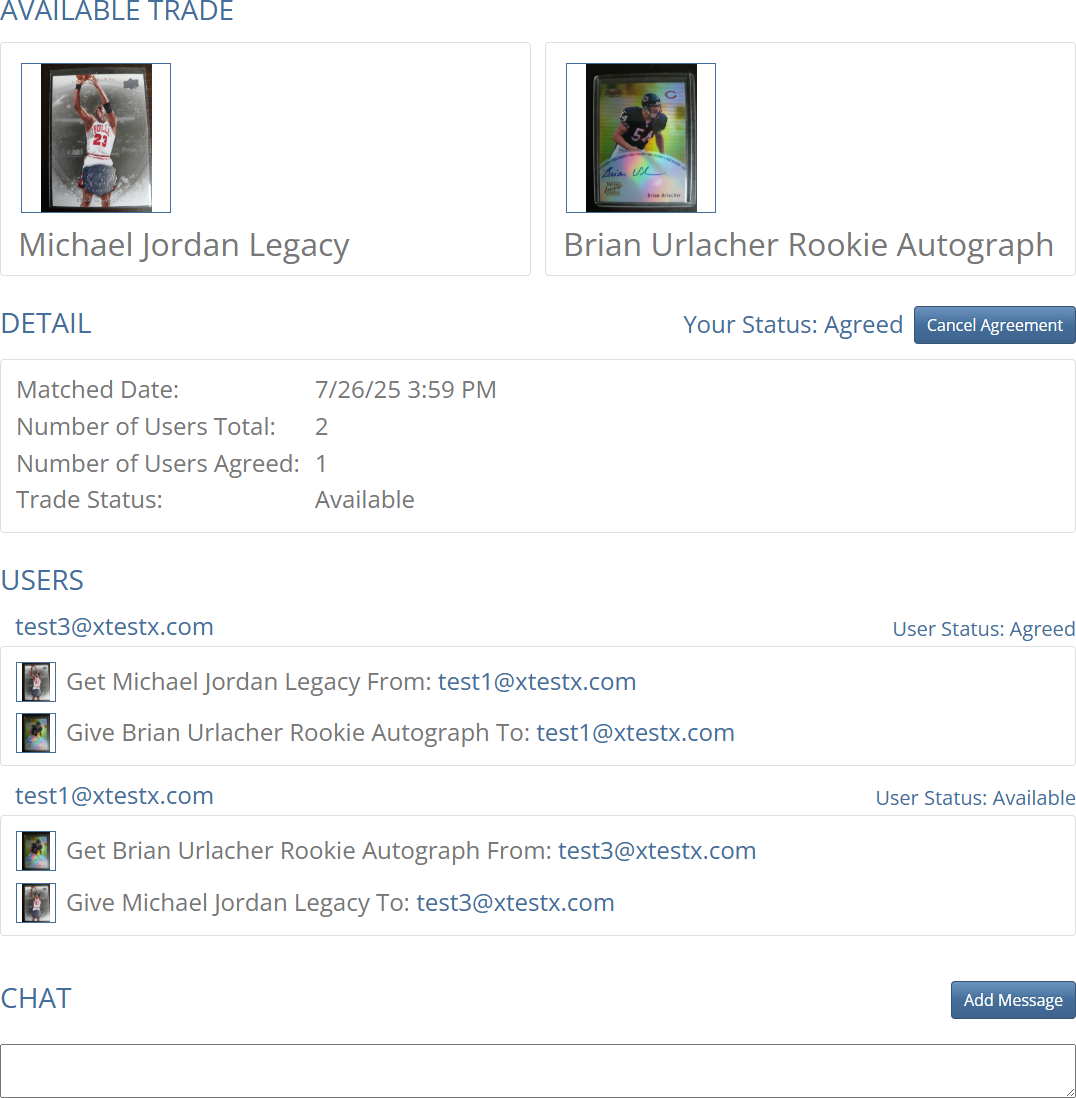
When you accept a trade offer for one of your items, you will be taken to the "Available Trade" detail page.
The detail page first shows the trade item that you have accepted along with your item.
Next it shows some details of the trade, including Your Status, the Matched Date, Number of Users Total, Number of Users Agreed, and Trade Status.
Your Status will be "Agreed" because you accepted the offer.
If you change your mind and no longer want to make the trade, click on the "Cancel Agreement" button to the right of Your Status.
The Number of Users Total in this trade is two, a direct trade between the users in this example.
The Number of Users Agreed is one, because you accepted the offer for this trade but the offering user has not yet agreed.
The Trade Status will be "Available" because the trade has been matched but not every user has agreed to it yet.
When a trade is first matched it will have status "Available" until all of the users agree to the trade.
Next this page shows the Users that will be involved, along with the items that they will be getting and giving, and their User Status.
Finally the page shows a "Chat" area.
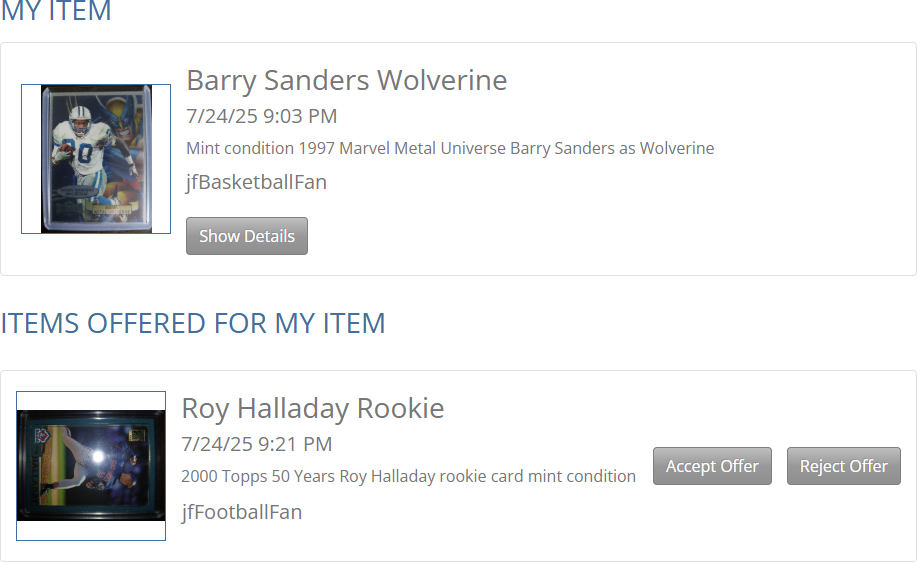
Going back to the "Offers for My Items" page in this example, "jfBasketballFan" clicks the "View Offers" button for his football card.
Here we can see the baseball card that "jfFootballFan" has offered for the football card.
This offer will not be accepted because "jfBasketballFan" is shopping for basketball cards.
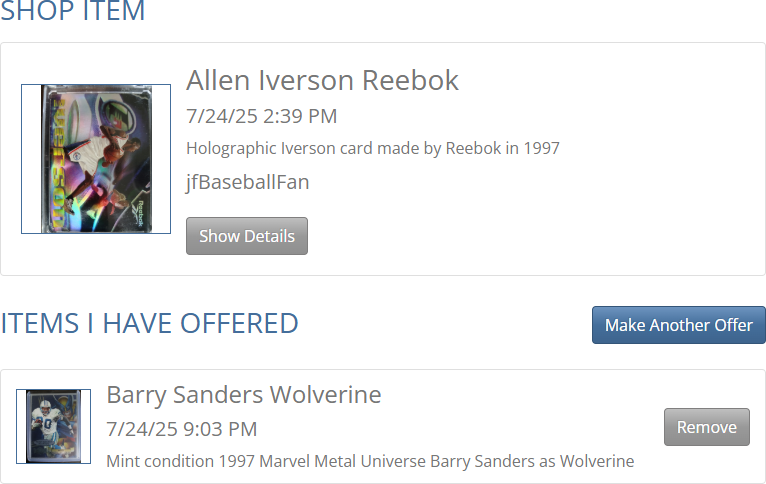
Next the sample user "jfBasketballFan" goes to the "Shop for Items" page and finds a basketball card.
He offers his football card to "jfBaseballFan" for the basketball card and is taken to the detail page showing his offer.
This offer will not be accepted by "jfBaseballFan" since he is shopping for baseball cards.
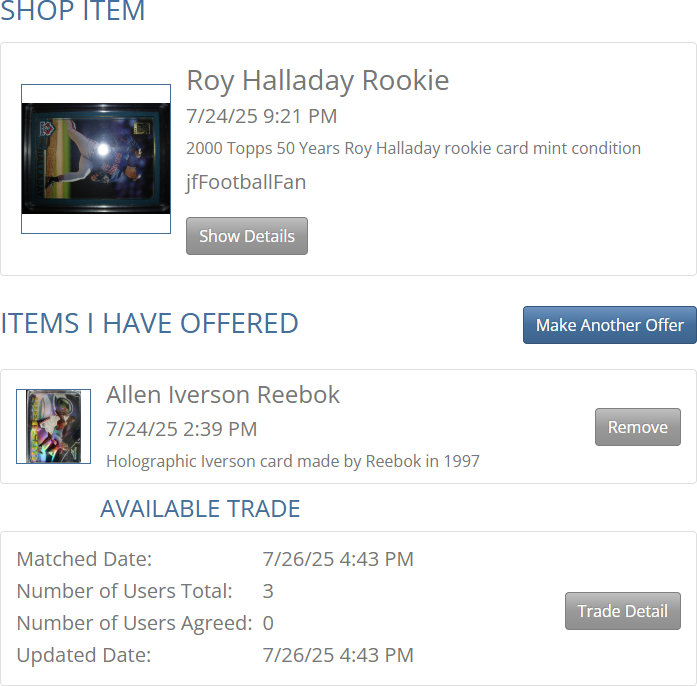
Next the sample user "jfBaseballFan" goes to the "Shop for Items" page and finds a baseball card.
He offers his basketball card to "jfFootballFan" for the baseball card and is taken to the detail page showing his offer.
This offer will not be accepted by "jfFootballFan" since he is shopping for football cards.
However, it also shows an "Available Trade" underneath the basketball card that he has offered.
This "Available Trade" is a combination that JF Cards' trade matching process has found for a group exchange, based on the offers of our three sample users.
When a trade is first matched it will have status "Available" until all of the users agree to the trade.
Next it shows some details of the trade, including the Matched Date, Number of Users Total, Number of Users Agreed, and Updated Date.
The trade Updated Date will be set each time one of the Trade Users agrees to the trade or cancels their agreement.
To view the details for a trade listed on the "Available Trades" section, click the "Trade Detail" button on the right side of the trade section.
All available trades will also be listed on the "Available Trades" page in the main menu section labeled "Trades".
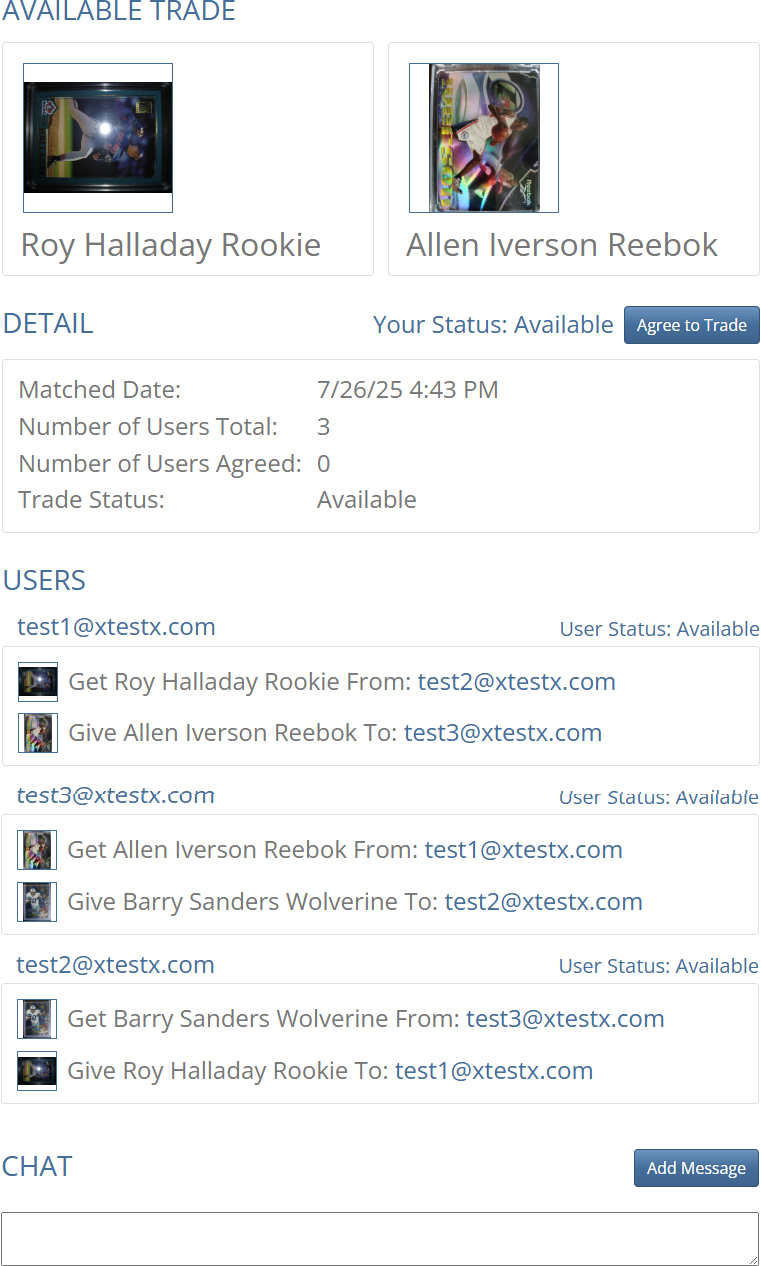
The "Available Trade" detail page first shows the shop item that you would get along with your item that you would give.
Next it shows some details of the trade, including Your Status, the Matched Date, Number of Users Total, Number of Users Agreed, and Trade Status.
The details section of the trade also displays your User Status and a button to change your User Status.
The Number of Users Total in this trade is three, the sample users we have seen in our examples.
The Trade Status will be "Available" because the trade has been matched but not every user has agreed to it yet.
When a trade is first matched it will have status "Available" until all of the users agree to the trade.
Next this page shows the Users that will be involved, along with the items that they would be getting and giving, and their User Status.
Finally the page shows a "Chat" area.
You can also get to this "Available Trade" detail page by clicking "Available Trades" in the main menu "Trades" section and clicking on the "Trade Detail" button
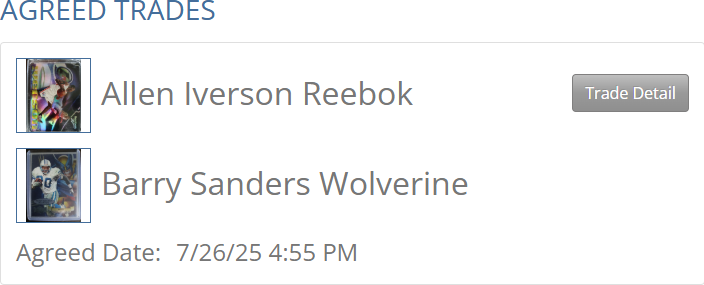
Once all users have agreed to a trade, the Trade Status changes from "Available" to "Agreed".
Click on the "Agreed Trades" link in the main menu "Trades" section to view a list of all currently agreed trades that you have.
Each "Agreed Trade" in the list has displayed the shop item that you will get and your item that you will give, along with the Agreed Date when the last of the trade's users agreed to the trade.
To view the details for a trade listed on the "Agreed Trades" page, click the "Trade Detail" button on the right side of the trade.
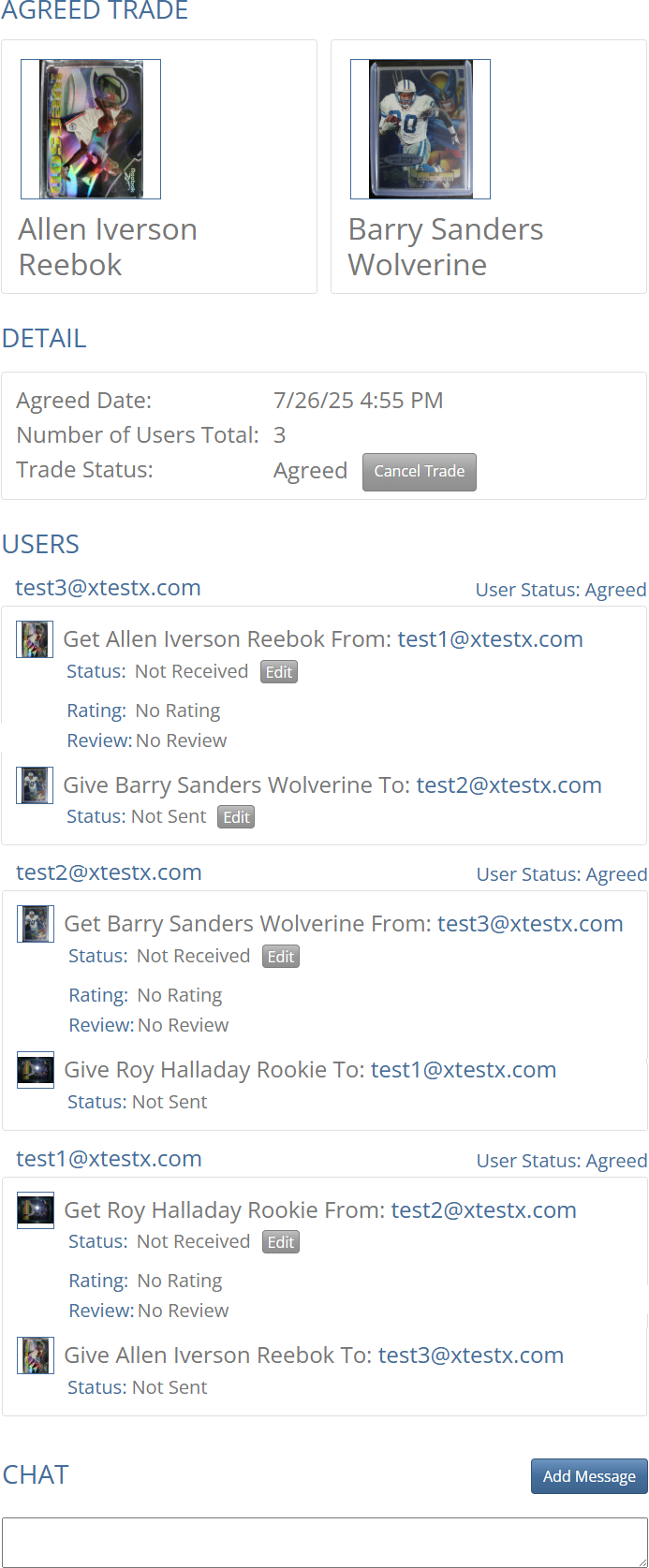
The "Agreed Trade" detail page first shows the shop item that you will get along with your item that you will give.
Next it shows some details of the trade, including the Agreed Date, Number of Users Total, and Trade Status.
The Number of Users Total in this trade is three, the sample users we have seen in our examples.
The Trade Status will be "Agreed" because all of the users have agreed to the trade.
If the trade needs to be canceled for any reason, a user may click the "Cancel Trade" button to update the trade status and enter a note about why it is being canceled.
Next this page shows the Trade Users that will be involved, along with the items that they will be getting and giving.
Click a user name to open the "User Profile" pagae and view details of the user.
Finally the page shows a "Chat" area.
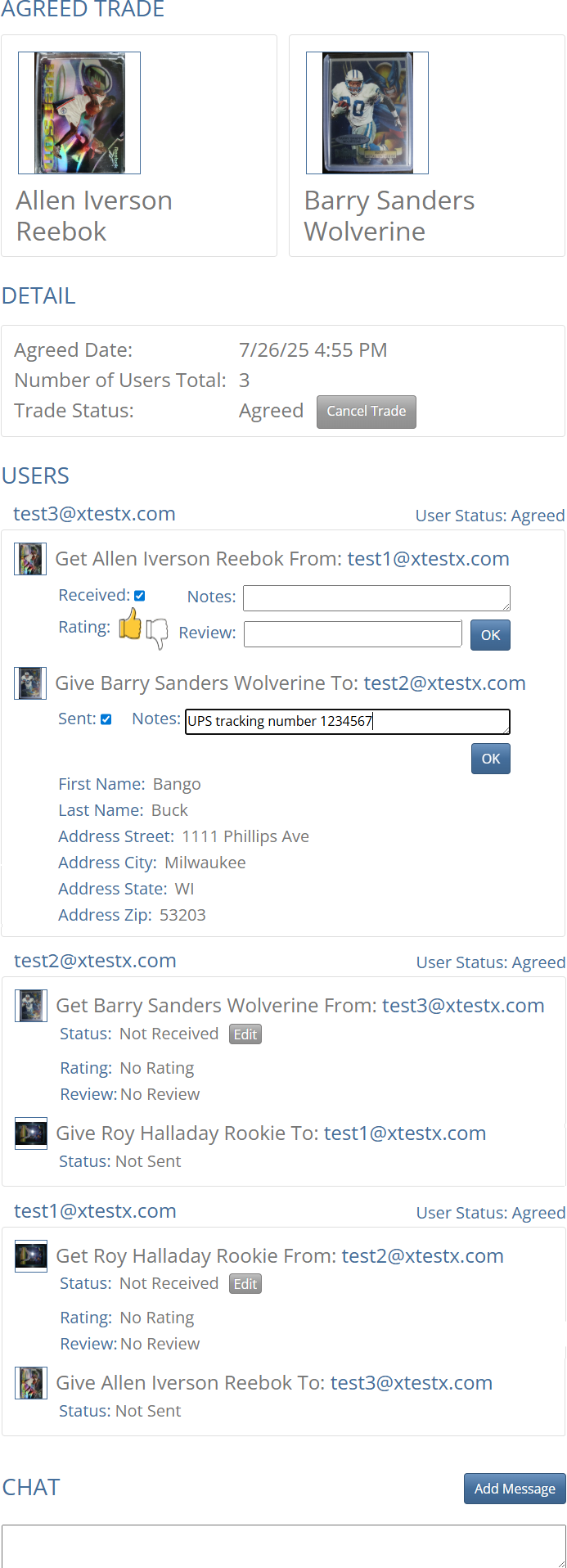
On the trade detail page click the status Edit button to mark your items as received and sent, add a note for each of the items, rate the other user, and leave a review for the other user.
The Edit sent section displays the name and address of the other user for shipping.
When all users have marked their items as received and sent, the Trade Status will become "Completed".
The "Completed Trades" link in the main menu "Trades" section will list all trades having a "Completed" or "Canceled" Trade Status.
Chat
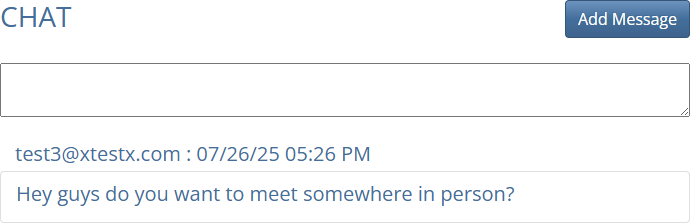
The "Available Trade" and "Agreed Trade" detail pages include a "Chat" area at the bottom.
The "Chat" area is where the trade users can message each other in order to plan out and complete the trade.
Type any message in the text entry area and then click the "Add Message" button.
Once you have typed any message in the text entry area and clicked the "Add Message" button, your new message will be displayed underneath.
The "Chat" area displays a list of all the messages that have been entered by any of the users, sorted by date with the newest messages at the top.
Each message shows the user who wrote it and the time that they wrote it.